


 Communication Solutions
Training & Implementation
Funding
About Us
Contact
Support/Service
Find an AAC Consultant
Search
Select Language
Your Genesis device supports your daily communication. With computer control features for Empower® software, your Genesis™ device can also help you navigate your Windows™ desktop and applications—giving you a more direct, familiar way to do more. With Genesis, the tools you use to communicate can also help you take control of writing an email, browsing a website, joining an online activity, or watching a favorite video.
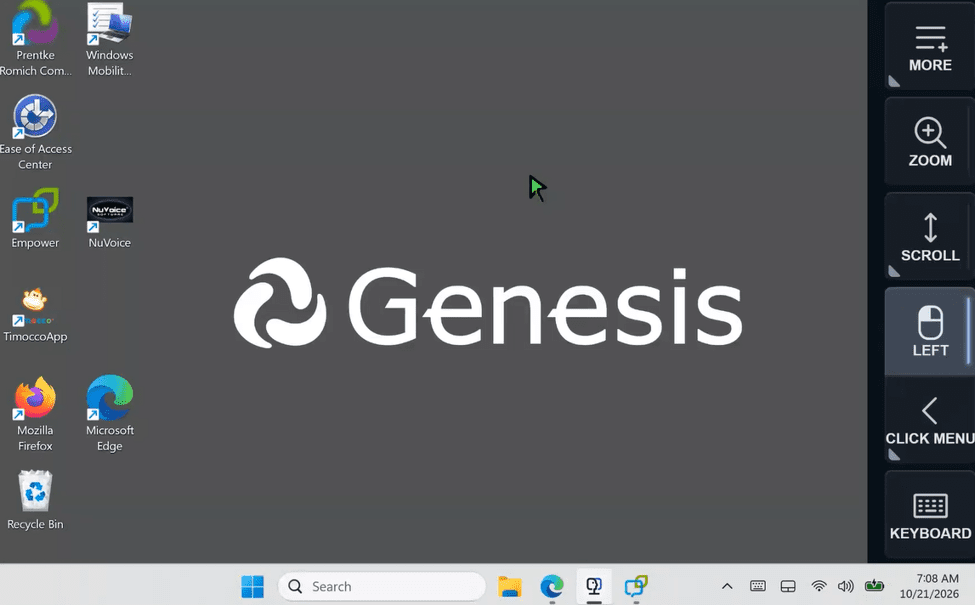
Use your familiar head tracking or eye tracking settings to control the Windows desktop and applications on your Genesis device. Make selections with dwell, blink, or a switch—whichever access method works best for you. No need to transfer to an entirely different setup just because you are moving from communication to computer tasks. The toolbar can also move from the left side of the screen to the right, helping you position it where it is most convenient for the task.
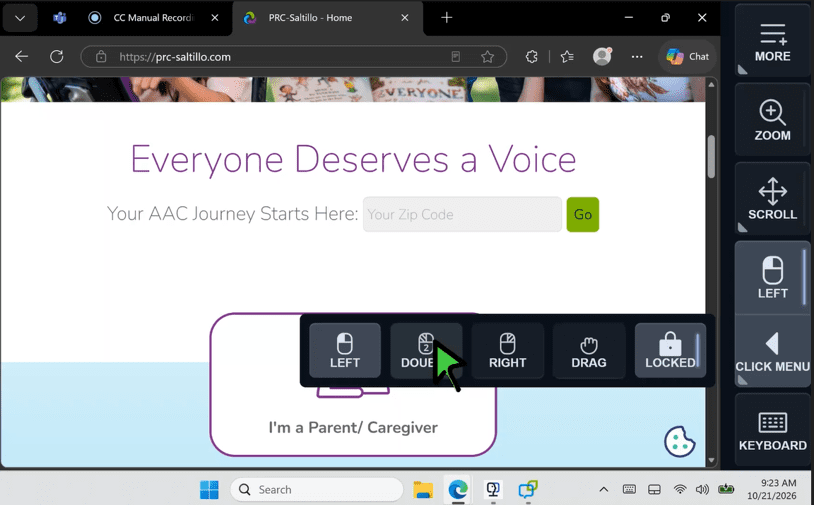
Click, double-click, right-click, and drag and drop using eye or head movement. Choose a mouse action for one-time use or lock it in when you want to repeat the same click type without selecting it again. When clicks could get in the way—such as while reading an article or watching a video—you can turn them off and enjoy the content without interruption.
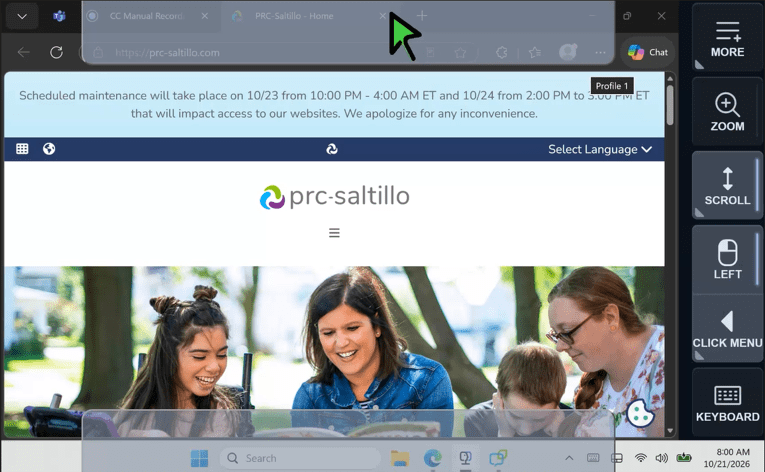
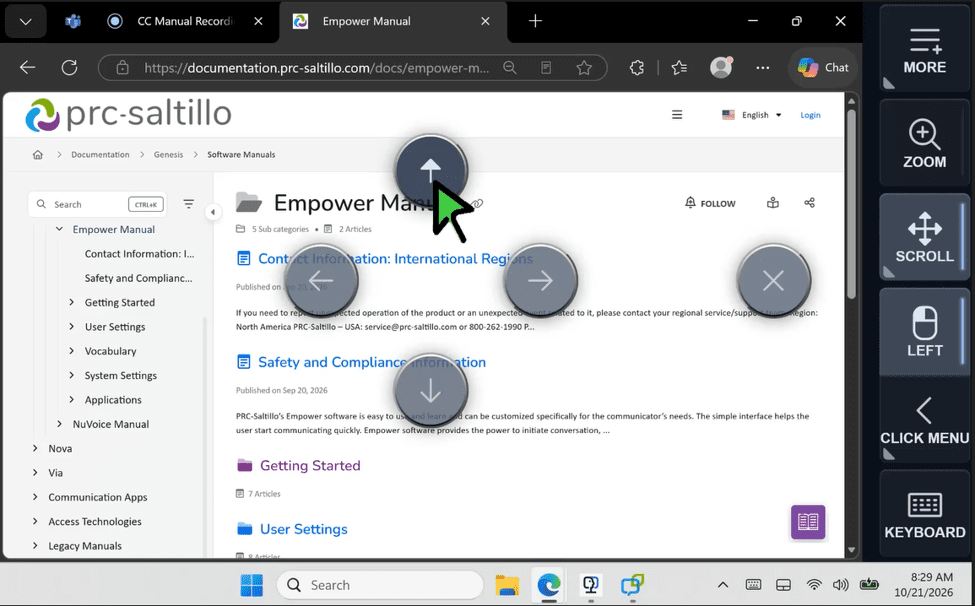
For everyday pages and applications, simple scroll makes moving up and down comfortable and straightforward. On more complex websites or applications with multiple scroll areas, advanced scroll lets you move in all four directions and choose where to dock the scrolling tool.
Small buttons and tightly packed links don’t have to slow you down. If something is difficult to click, the zoom tool makes a target larger and brings it to the center of your screen, helping you make a more precise selection with less effort.
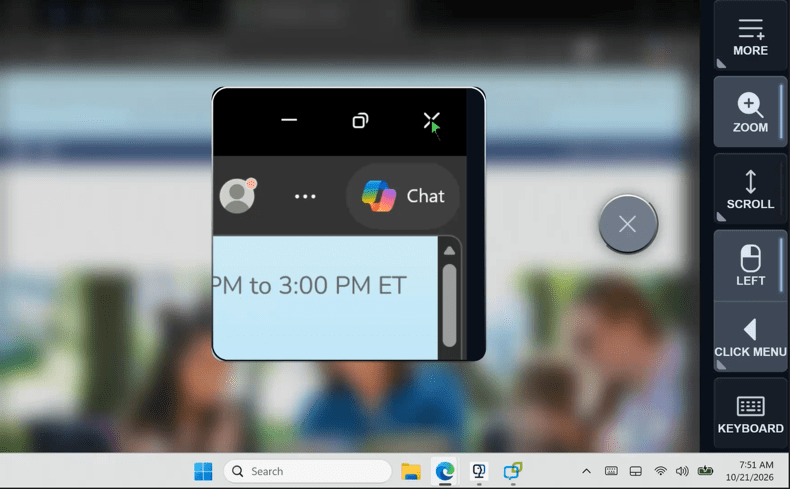
Enter text in Windows applications using your Empower symbol-based vocabulary or keyboard. This flexibility opens more applications to people with a range of literacy skills and communication preferences—so writing, searching, learning, and connecting can feel more natural.
Computer control software, separate from Empower software, automatically updates so you can receive the latest features as they become available. This growing set of tools will make your Genesis device even more useful across communication, learning, work, entertainment, and everyday life.
One device. More possibilities. With computer control features for Empower on Genesis, the access methods and vocabulary you already know can help you take control and interact in your digital world.
Products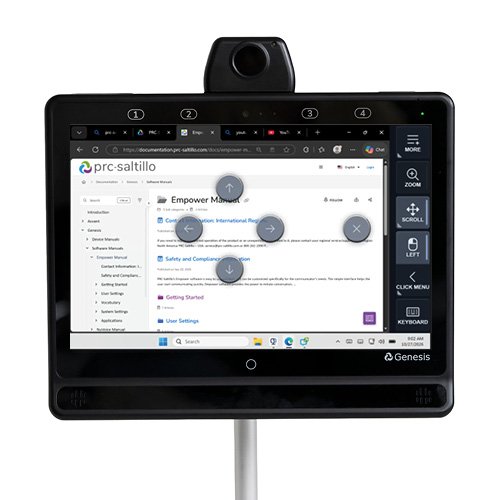 Products
Your Genesis Communication Device, Now In Control Of Your Computer
Published November 4, 2026Expand what’s possible with Genesis computer control. Use familiar eye or head tracking to navigate Windows, browse, type, scroll, click, and more.
 AAC Funding
Funding Update: What Elevance Health’s New 60-Day AAC Trial Requirement Means For You
Published November 3, 2026Learn what Elevance Health’s new 60-day AAC device trial requirement means for your client and how to prepare, document, and get funding support.